Crew Chief Overview #
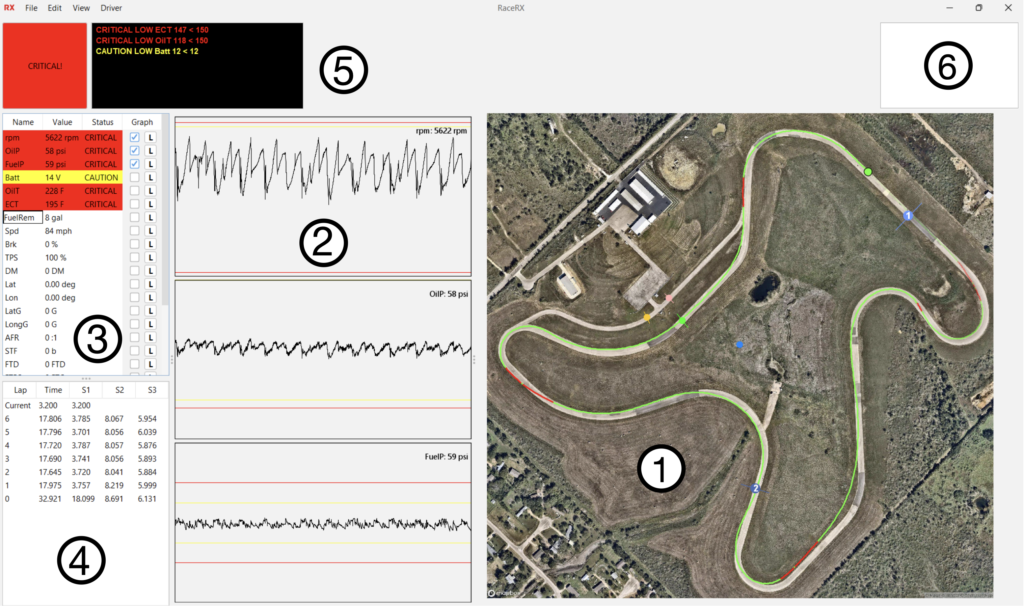
Feature Overview #
- GPS Overview: Shows the live position of your car on the track, complete with a driving line history and braking zones. Useful for setting track markers that determine lap and sector times, as well as pit in/out times.
- History Graph: Displays three scrolling graphs that show the past two minutes of telemetry data. You can customize which data channels are displayed in these graphs through the Channels View.
- Channels View: A table of the latest received data where you can select which data to display in the History Graph. Here, you can also set upper and lower limits for warning messages in the Warning Display and adjust thresholds for the History Graph.
- Lap/Sector View: Lists all detected lap and sector times, offering a detailed breakdown of performance during the race.
- Warning Display: Highlights any data channels that exceed predefined warning or cautionary thresholds, ensuring that critical alerts are prominently displayed.
- Flagtronics: For cars equipped with Flagtronics, this feature displays the same flag state that the driver sees, enhancing track safety and communication.
Data Acquisition: How Crew Chief Reads Data from the Car #
Following the setup of your RaceRx car unit with your car’s CAN network, the unit will begin transmitting selected CAN messages to the pit radio, which then forwards this data to the Crew Chief software. This software processes the incoming data to display:
- GPS Data: Shows the car’s position on the track map.
- Engine and Performance Data: Presented in both the Channels View and the History Graphs.
- Warnings: Based on the set limits, warning messages are displayed to alert the crew of any potential issues.
- Lap Times: Triggered by track markers entered by the user, lap time data is prominently shown in the Lap/Sector View.
Initial Crew Chief Setup #
To get started with Crew Chief, you will need to configure the following components:
- Car/CAN Configuration: Establish connections and configurations with your car’s CAN network.
- Track Map: Set up the track map to accurately reflect the racing environment.