File #
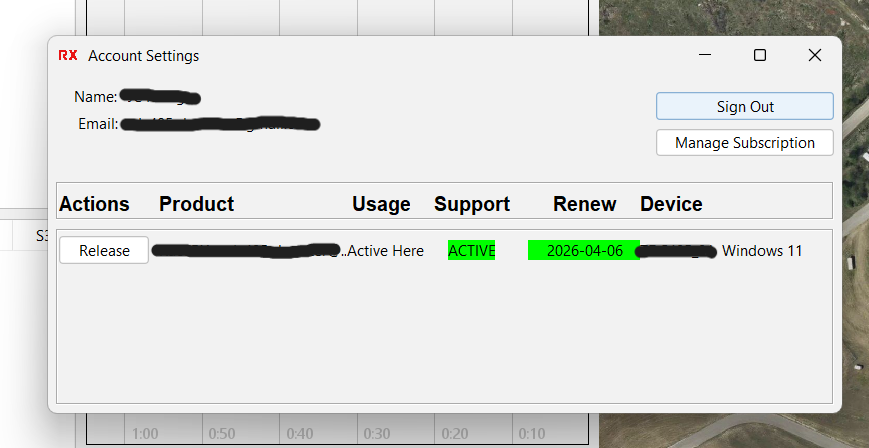
- Account: Opens the Accounts window. This window lists all of the licenses you have.
- Sign Out: Logs you out of your account and takes you to the Sign In page
- Manage Subscription: **Not functional yet**
- Release/Use button: When “Release” is displayed, that means that your current computer is assigned to your license. You can only have one computer per license. Click “Release” to release the current computer from your license in order to assign a different computer to your license. If “Use” is displayed, That means no computer has been assigned to your license. Click “Use” to assign the current computer to your license.
- Exit: Exits and closes RaceRX
Edit #
Map Config #
- New Map: Clears all track markers and zooms map to the United States.
- Load Map Config: Opens a window to load a map file from the Config folder. All maps have a .rmap suffix.
- Save Map Config: Use to save the current map configuration. Saves all current markers.
- Go To GPS: Loads a satellite image centered on the inputted Latitude and Longitude values.
- Unlock Map Markers: *** not yet implemented
Car Config #
- Sync ID Filters: Debug Tool used to validate that RaceRX and Crew Chief are listening to the correct CAN Ids.
- Load Car Config: Load a different car configuration into the Crew Chief software.
- Car Configurator: Opens current car configuration window. If current configuration is edited it must be saved (
File>Save or File>Save As..), then reloaded (Car Config>Load). See “Setup Car Configuration” for more information.
Radio Config #
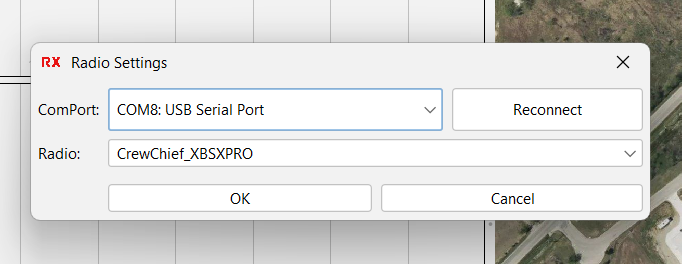
- Configuration: Radio paring tool. Plug your radio into the USB-C port of your computer, select which radio is plug in from the drop down menu, and click “Pair”. Once you do this with all of your radios they will all be working a unique channel.
- Connect: Used to re-connect the pit radio to your computer. Anytime you have radio issues try to reconnect first. It is also needed if your computer selects a different COM port when you plug in your radio during a new session. The program remembers which COM port it used last time, so if the radio is on a new COM port it needs to reset using this function.
View #
- Fuel Calculator: If your car’s ECU can output fuel usage data or fuel level this window can display average fuel usage and give average burn rate over a 1, 2, and 5 intervals. The slider allows averaging over different time intervals.
- Notes: Allows the user to save notes during a race. Previous notes with their time stamp are also displayed.
- Pit History: Displays all pit in and out events with time stamps. Also calculates total time in pits. If a pit event is missed you can add a new event at the bottom of the window. To edit events, click the edit button and a window will open allowing you to edit or delete a pit event.
- Warnings History: Displays all warnings (Criticals and Cautions) along with a time stamp of when they occurred. Also tracks when reset button is clicked.
Note: Notes, pit events, and warning events are are also written to a log file. You can find them in the “Log” folder in the directory that holds the Crew Chief program. In the log folder will be a another folder for the date. A new folder is created each day. These logs are in .csv format.
Driver #
There are several messages that the Crew Chief software can send to the car unit in case radio communications fail. You can send multiple messages at once if desired. Go to the windows menu bar and navigate to Driver>. The bottom options are pre-set messages to send.
- Driver LED / Pit Now: PIT NOW will scroll across the car unit’s screen.
- Save Fuel: SAVE FUEL will scroll across the car unit’s screen.
- +2/+1/-1/-2: PACE +2 (or what you selected) will display on the car unit’s screen.
Other Message Options: #
- Clear Crew Chief Messages: This will stop sending all selected messages.
- Send Custom Msg…: Opens a box where you can type in a custom message to send and how long you want it to display for. (Tip: Message length is a max of 4 characters. Some lowercase letters are hard to read. It is recommended to test your messages in advance so as to not confuse the driver. If in doubt only use uppercase letters)
- Dismiss Driver Messages: If a driver has left a message active Crew Chief can forcibly clear the message from the box click “Dismiss Driver Messages”. RaceRX button Leds will immediately turn off and the driver message/s will clear.
- Acknowledge Driver Msg: If Crew Chief wishes to send acknowledgement to the driver that their message has been received click “Acknowledge Driver Msg”. RaceRX button Leds will flash at the driver for a short time then turn off. The driver message/s will clear.